
Writing a Network Scanner in PowerShell
I run a /23 network at home, which is roughly 500 usable addresses across two /24 ranges. Whenever I added a device or container that needed a static IP, I picked an address, pinged it, and hoped nothing else was using it. That got old fast.
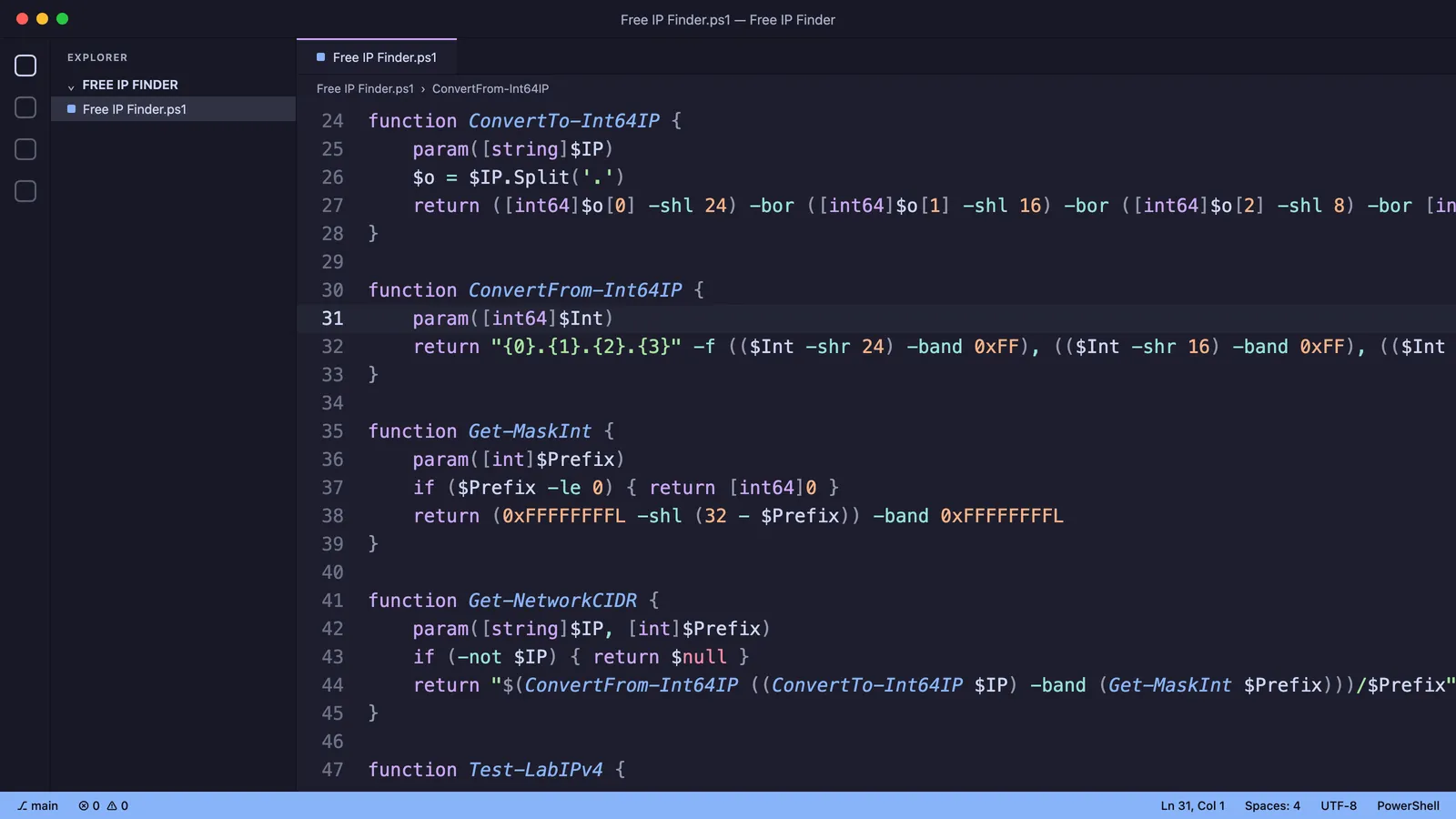
So I wrote a scanner. It started as a script called Invoke-LabScan and is now IP Discovery in the Script Library of NetOps Workspace. The command is Find-IPDevice. It tells me what answered, what didn’t, and what my DHCP server says about its pools.
The requirements decided most of how I built it.
I wanted to paste it into a console. I don’t always have a script folder I want to manage for a one-off, so the script never calls exit, which would close the window. It does ask for a target, but it clears any leftover pasted text from the input buffer first, so a stray newline can’t answer the prompt for me.
It had to be fast. If you ping 500 addresses one at a time with a 500ms timeout, you wait more than four minutes. The scanner sends 128 asynchronous pings at once and waits for the batch, which brings a /23 down to a few seconds.
It also shouldn’t need admin rights. Scanning uses standard .NET classes and built-in PowerShell commands like System.Net.NetworkInformation.Ping, Get-NetNeighbor, and Get-NetIPConfiguration. Reading DHCP scopes is the one part that needs the DHCP Server PowerShell tools and permission on the server.
Pings first, then ports
Plenty of devices ignore pings. Printers, IoT gear, and anything behind a firewall that blocks ICMP can all look offline. So after the ping sweep, the scanner tries TCP connections to ports 22, 80, 443, 445, and 3389 on everything that stayed quiet. A connection that succeeds is evidence a device is there. A timeout tells me nothing, since the device could be off or just filtering those ports. -NoTcp skips this step.
The ARP timing
When to read the ARP cache matters. It comes after the probes, never before. Pinging or connecting to an address makes my PC send an ARP request, and most devices answer that even when they drop everything else. Reading the cache afterward catches them. This only works on subnets my PC is directly connected to, and those results are labeled as ARP cache entries so I can see why the scanner thinks a device is there. Addresses that belong to my own PC count as used even if the probes fail.
Picking the right interface
VPNs, virtual switches, Wi-Fi, and Ethernet can all be up at once, so taking the first adapter Windows lists doesn’t work reliably. The scanner adds the route metric and the interface metric and picks the lowest total, which is the same calculation Windows uses to choose a route.
When I want a different subnet, I have a few options:
Find-IPDevice -ListNetworksshows the connected subnets, subnet routes, and default routes this PC knows about, without probing anything.-AllConnectedscans every subnet attached to the PC.-Target 192.0.2.0/24,198.51.100.0/24scans the CIDRs I name.- Typing
Aat the prompt (or-Adjacent) scans the primary subnet and the equal-sized blocks just below and above it. Real routed boundaries may differ, so I treat that as a guess. It also looks up names for every address and lists the name-only results separately.
What the DHCP server says
Run it on a machine with the DHCP tools and it reads the detected server’s scopes. With -DhcpServer dhcp01 it reads the available-address counts for each IPv4 scope, and -DhcpAddressLimit 20 lists up to 20 addresses per scope that the server reports as available. -AllDhcpScopes scans every subnet defined on that server using its own masks. If a subnet has no DHCP scope, I add it with -Target. For DHCP servers that aren’t Windows, I check their scope dashboard instead.
Unobserved is not free
Early versions suggested where to put the next static IP. I took that out. A quiet address might be a powered-off laptop, a DHCP reservation, or something in my IPAM notes that never answered a probe, so the script now says “observed” and “unobserved” and nothing more. It still groups unobserved addresses into ranges, shows the largest block, and -BlockSize 5 finds a run of five in a row. Before I assign anything, I check the DHCP leases and reservations myself.
MAC address hints
The output has a vendor column, but I didn’t want a giant OUI database in the script, since those tables go stale. A small map covers common hypervisors and hardware: VMware, Hyper-V, VirtualBox, QEMU/KVM, Xen, and Raspberry Pi. For everything else it reads the first octet of the MAC. Bit 0 marks a multicast address. Bit 1 marks a locally administered one, which is how I spot the randomized addresses phones and laptops use.
Guard rails
A /16 has around 65,000 addresses, and scanning one at a 500ms timeout takes a long time and sends far more traffic than I’d want. MaxHosts defaults to 8192 and works as one budget shared across every subnet in a run. A subnet that would go over it is skipped, and the output says so, along with the command to raise the limit.
The RHEL version
There is also IP Discovery (RHEL) for Bash. It needs Python 3, ip, ping, and getent, scans the connected IPv4 subnets, and prints the results in the terminal. To include routed subnets, set export LAB_SCAN_TARGETS=192.0.2.0/30,198.51.100.0/23 before pasting it.
The Windows script is one file with no dependencies. Paste it in and it scans what’s attached to the PC. Run Find-IPDevice afterward to pick targets.